Yubikey hardware token
MFA Methods
If you've setup both Microsoft Authenticator and one or more hardware tokens you'll by default get notifications on your phone asking you to verify your login,
but with an option on the login login page to use a 6 digit code instead of the phone notification (if your phone is unavailable or without internet)
Change Method When Logging In
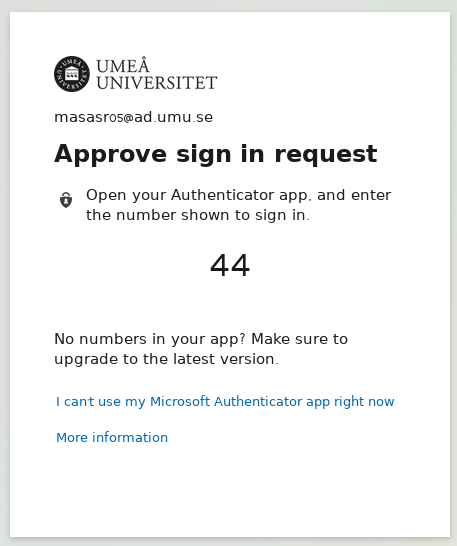
Click
I can't use my Microsoft Authenticator app right now
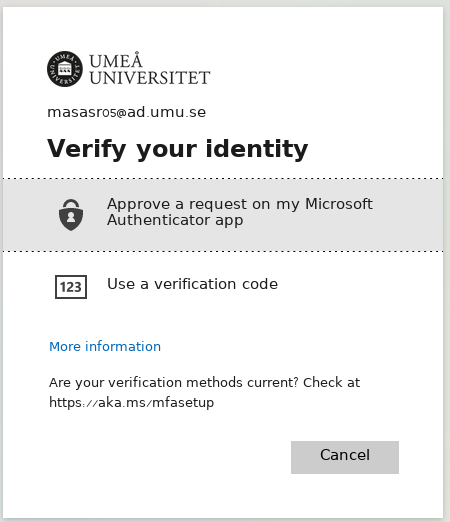
Click
Use a verification code
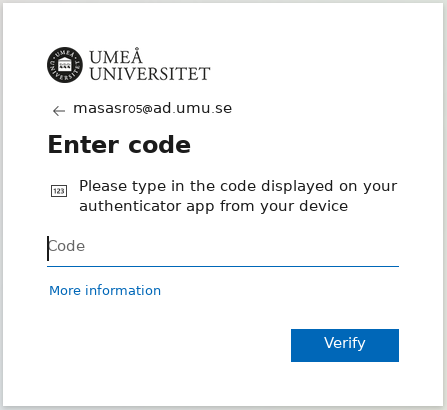
Enter the OTP from the Yubikey to login
Change Method From Code to Notification When Logging In
To change back from Code to Notification is the same process as above, the link to click is just named differently
Click
Sign in another way, then follow the above instructions
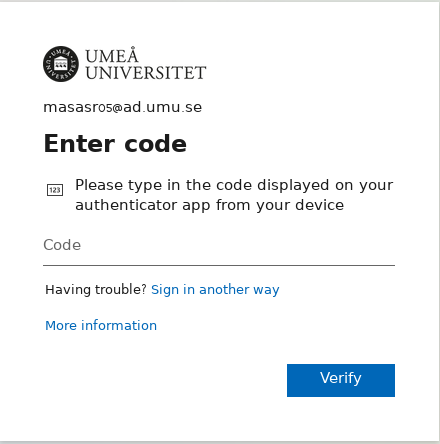
Change Default Method
Open http://aka.ms/mfasetup in a browser
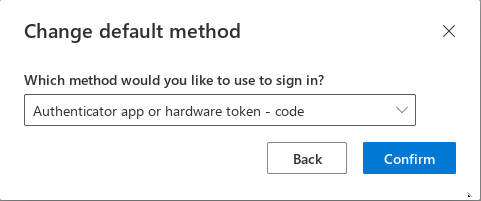
On the Default sign-in method line, click
Change
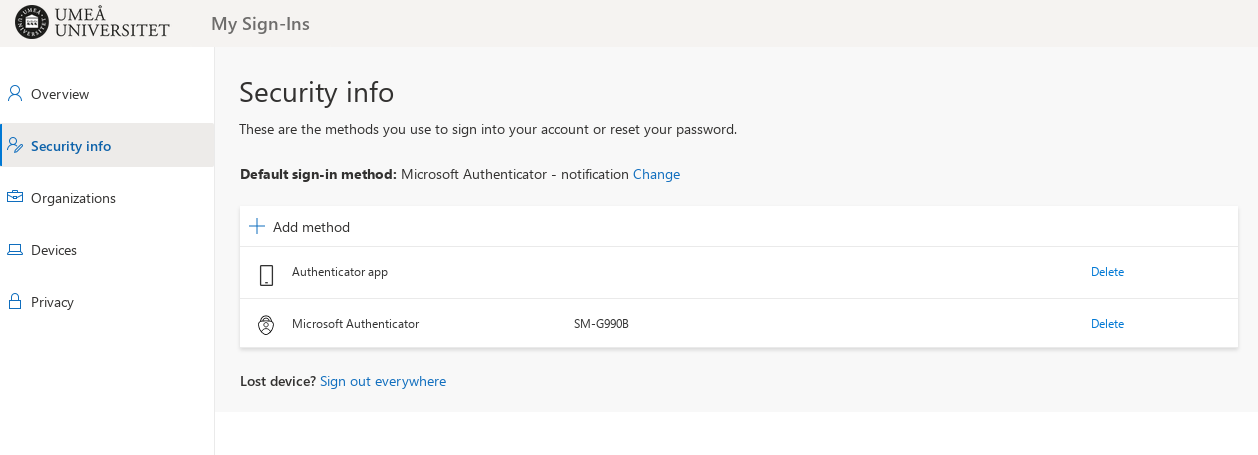
Select the method you want to use as default.
- Microsoft Authenticator - notification : A notification will popup in your phone (Microsoft Authenticator app)
- Authenticator app or hardware token - code : You will write/paste the 6 digit code from one of your security devices (Yubikey or other TOTP device)
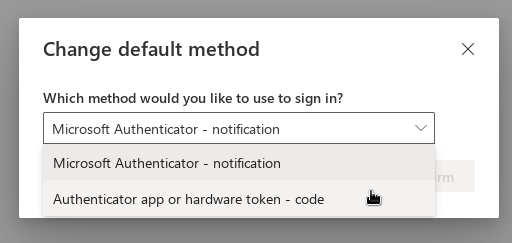
Click
Confirm