Yubikey hardware token
Step-By-Step Install MacOS
The Yubico Authenticator is available in the MacOS AppStore,
or you can download the .pkg installer directly and install it manually
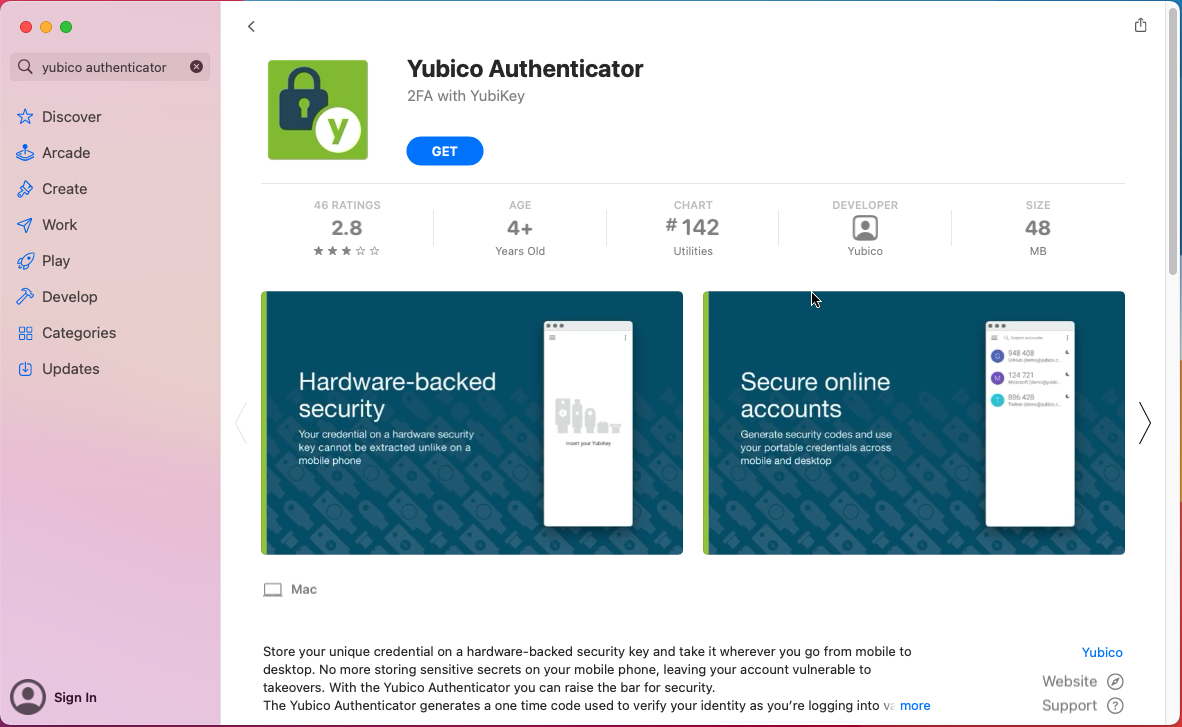
Search for
Yubico Authenticatorin the AppStore, clickGetfollowed byInstall
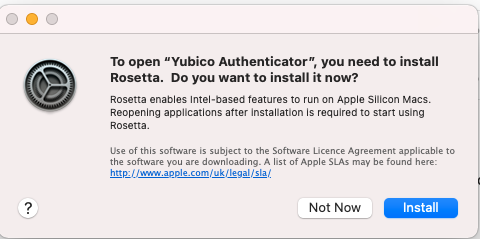
If you have a M1 Mac you might be prompted to install Rosetta if you dont already have it installed. Select
Install
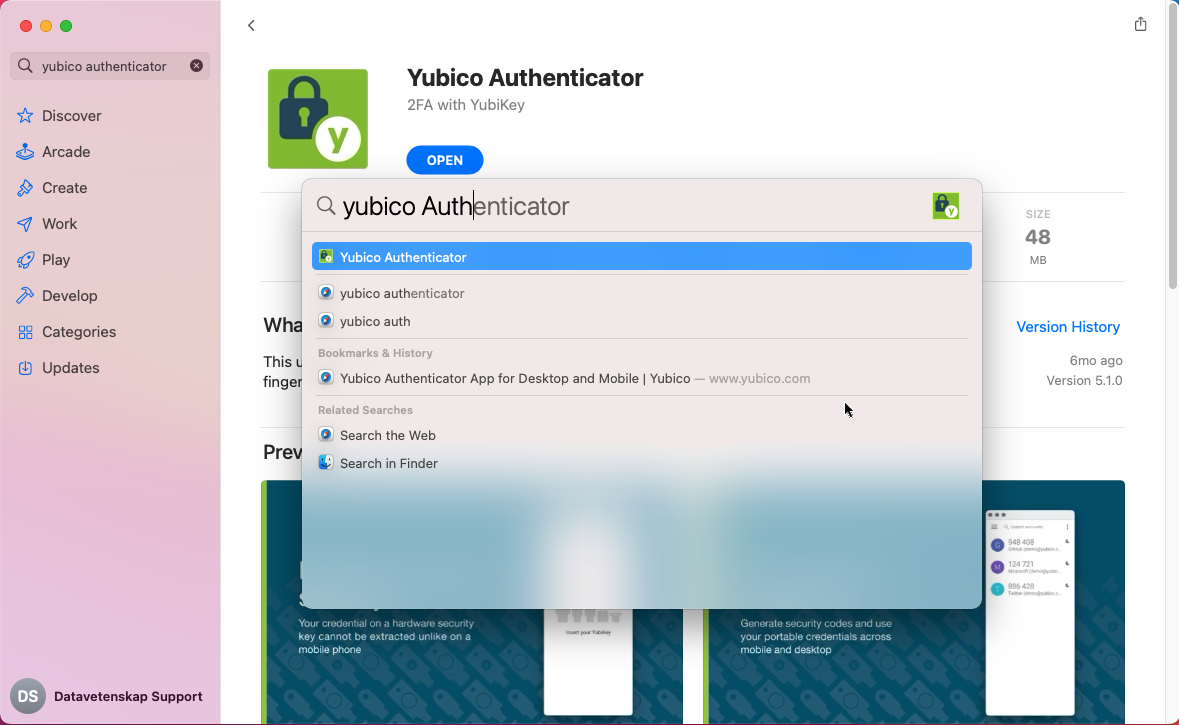
Open the app by searching for
Yubico Authenticatorin Apple Spotlight (⌘+Space)
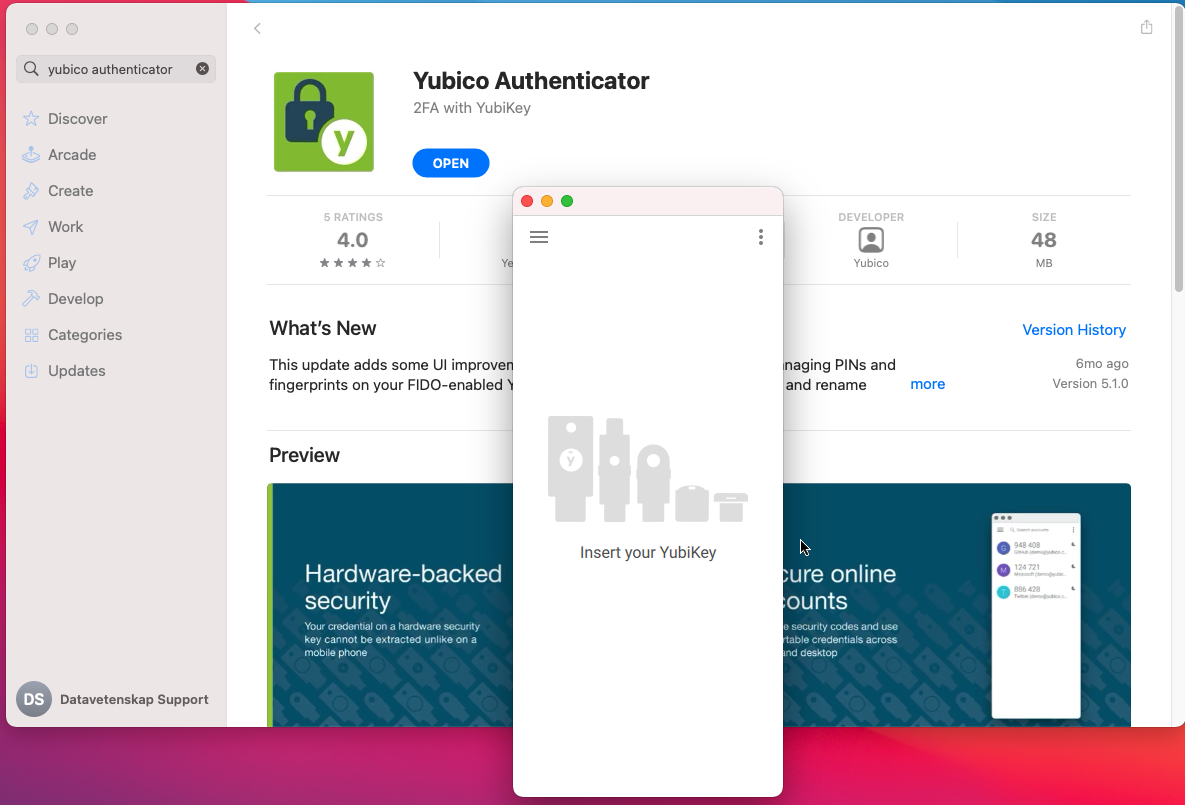
Done, the installation is completed and you've started Yubico Authenticator
Keyboard settings
When plugging in a Yubikey the Mac may try to identify it as a keyboard and ask you to press the key beside the Shift key.
This is not possible, so just skip it (close the window).
Yubico Authenticator may also ask you to allow it to receive keyboard presses even when it does not have focus, this can safely be enabled.
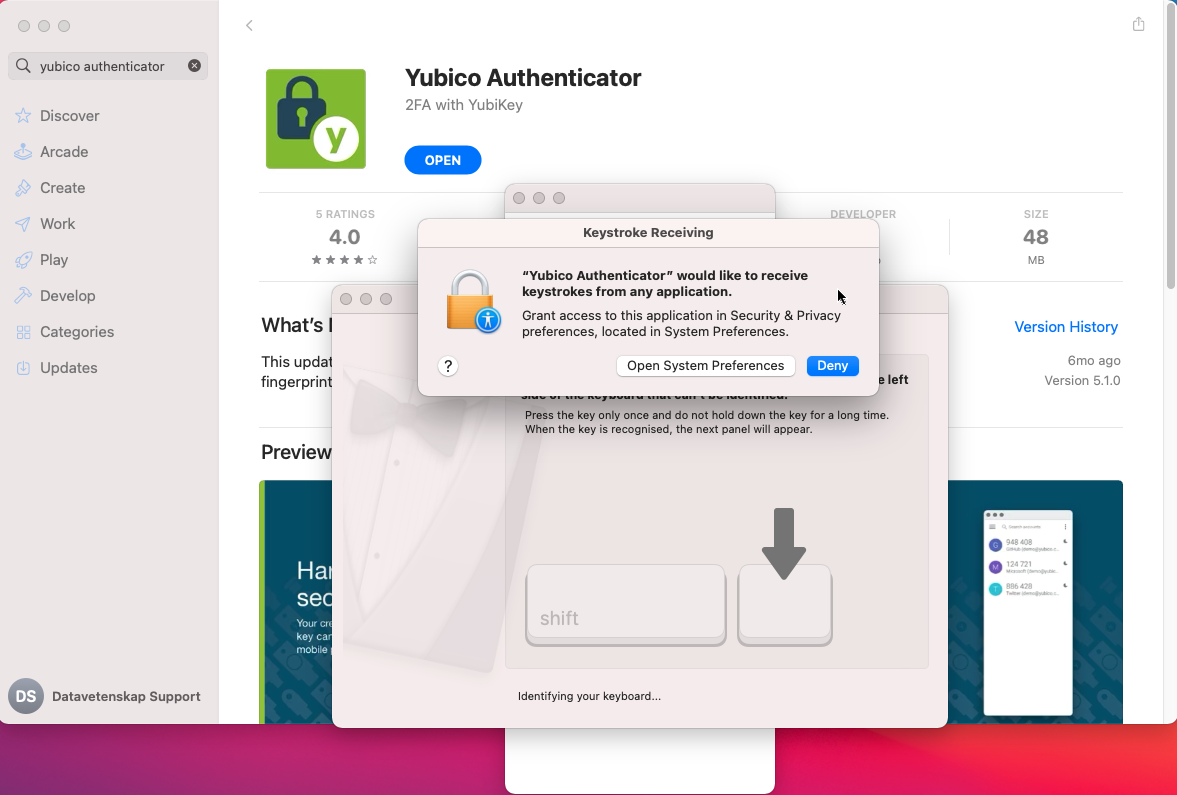
Click
Open System Preferencesor navigate toPreferences->Security & Privacy->Privacy->Input Monitoring
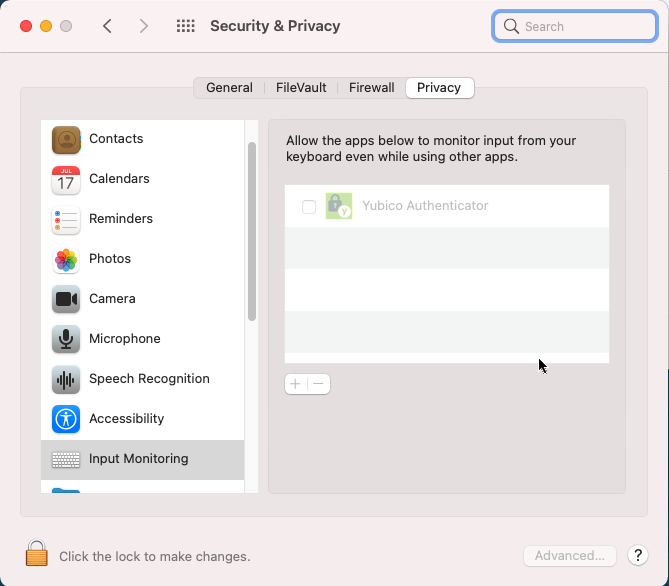
Click the lock and enter your password when prompted.
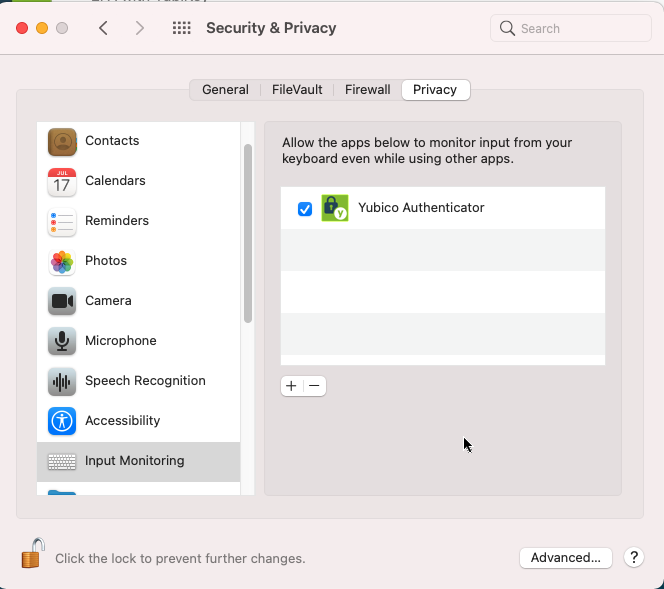
Click the box next to
Yubico Authenticator
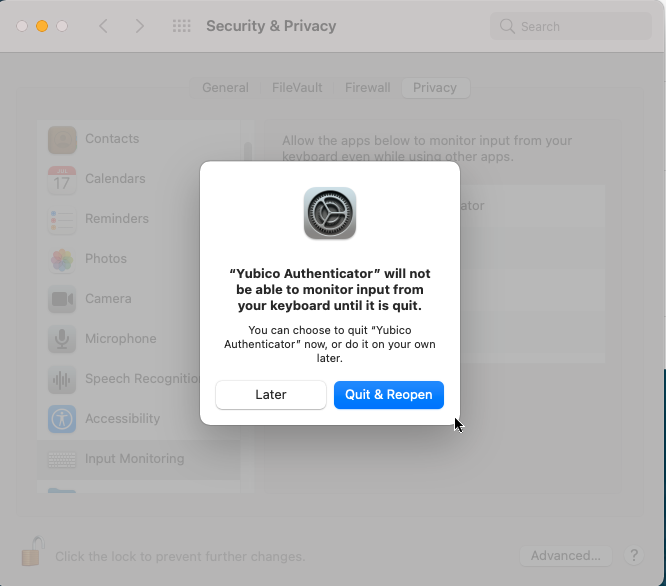
Press
Quit & Reopento re-launch Yubico Authenticator with the new system permissions